
Use this feature when a session was recorded under the wrong client, for example when the wrong profile was selected in the AxIT App during testing. Unlike merging, reassigning moves only the sessions you choose from a single day. Both client profiles are kept.
⚠️ Reassigning sessions is irreversible, so double-check your selections before continuing.
Follow these steps to reassign sessions:
- Open the session containing the client whose session(s) you want to move.
- Click the three-dot menu next to the client's name.
- Select "Reassign sessions to another client" from the menu.
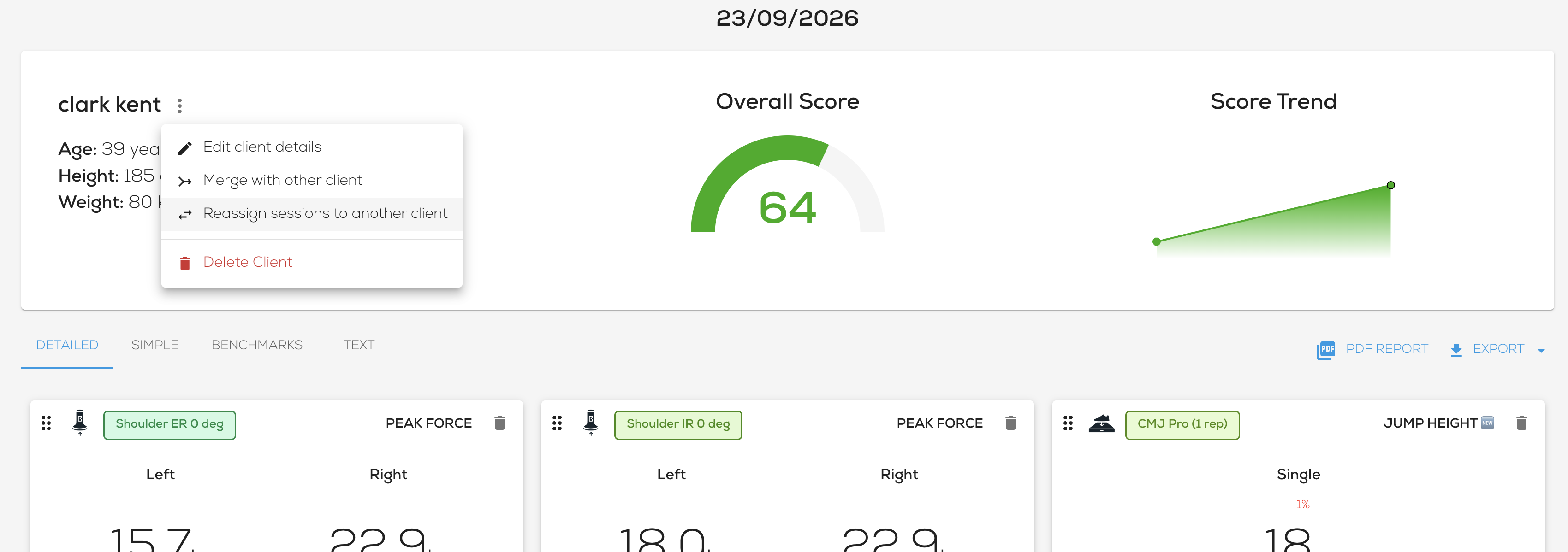
- Select the session(s) you want to move. Each session recorded on that day is listed with its time and source (e.g. 16:20 – axit). Tick Select all to move every session from that day, or tick individual sessions.
- Select the client you want to move the session(s) to from the New Client dropdown.
- Tick the confirmation checkbox to confirm that you understand this action is not reversible.
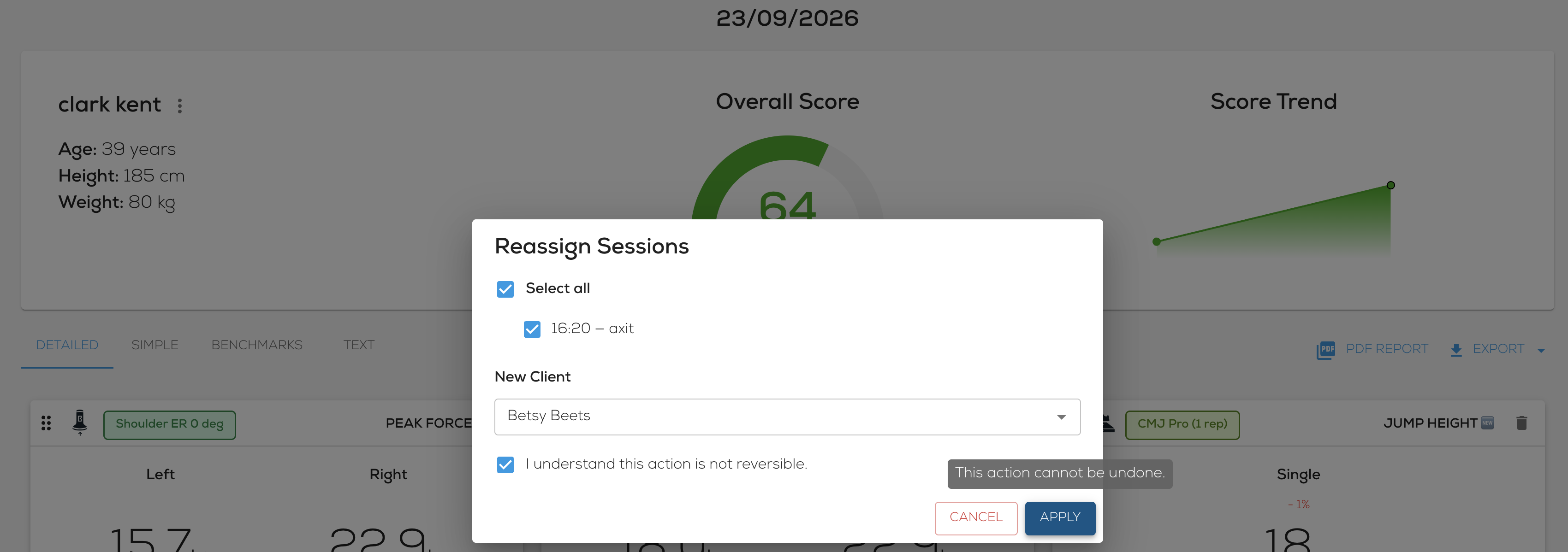
- Click Apply to complete the process.
Once completed, the selected session(s) will appear under the new client's profile, and a confirmation message will show.
Tip: The Apply button stays greyed out until you have selected at least one session, chosen a new client and ticked the confirmation checkbox.